Content Management
How to create and edit page content
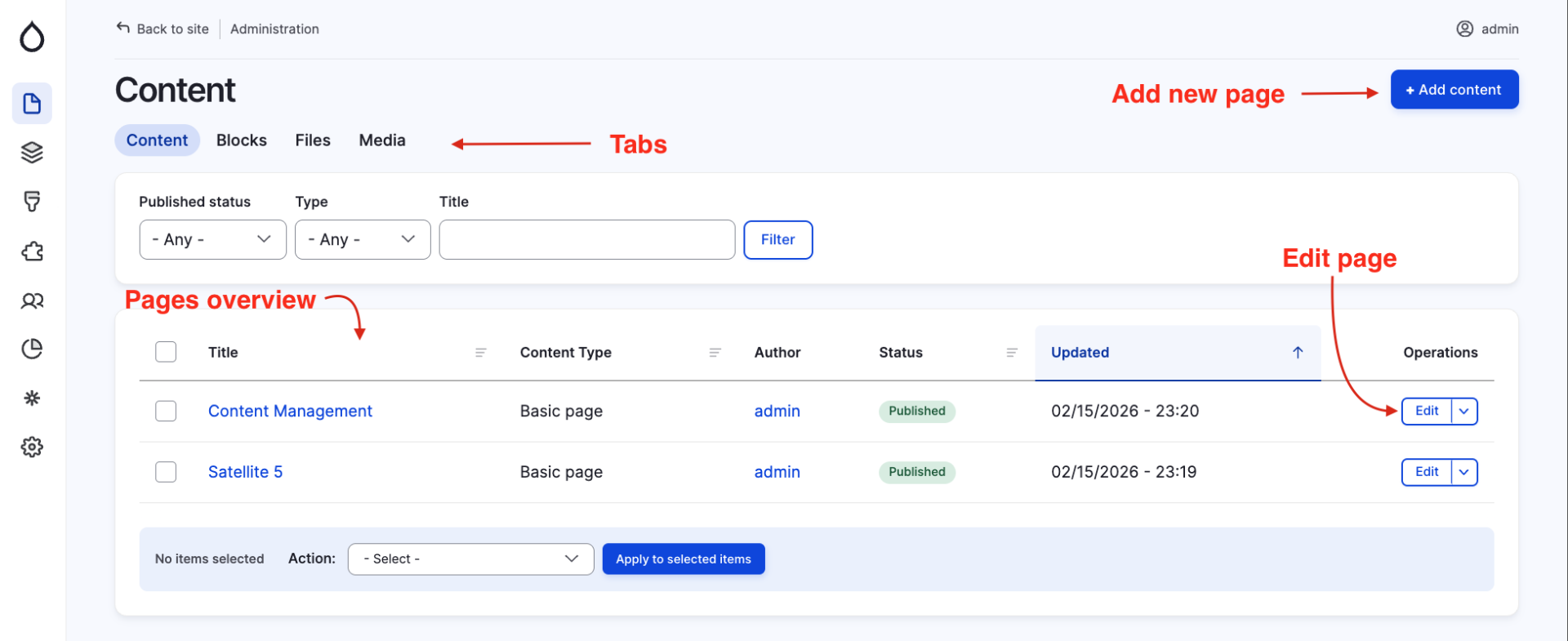
On the pages overview, you can either add new pages or choose to edit existing ones by clicking the page name or the "edit" button. On the tabs "files" and "media", the user can also add or edit media content (audio, video, images, documents).
Title
Adding page content
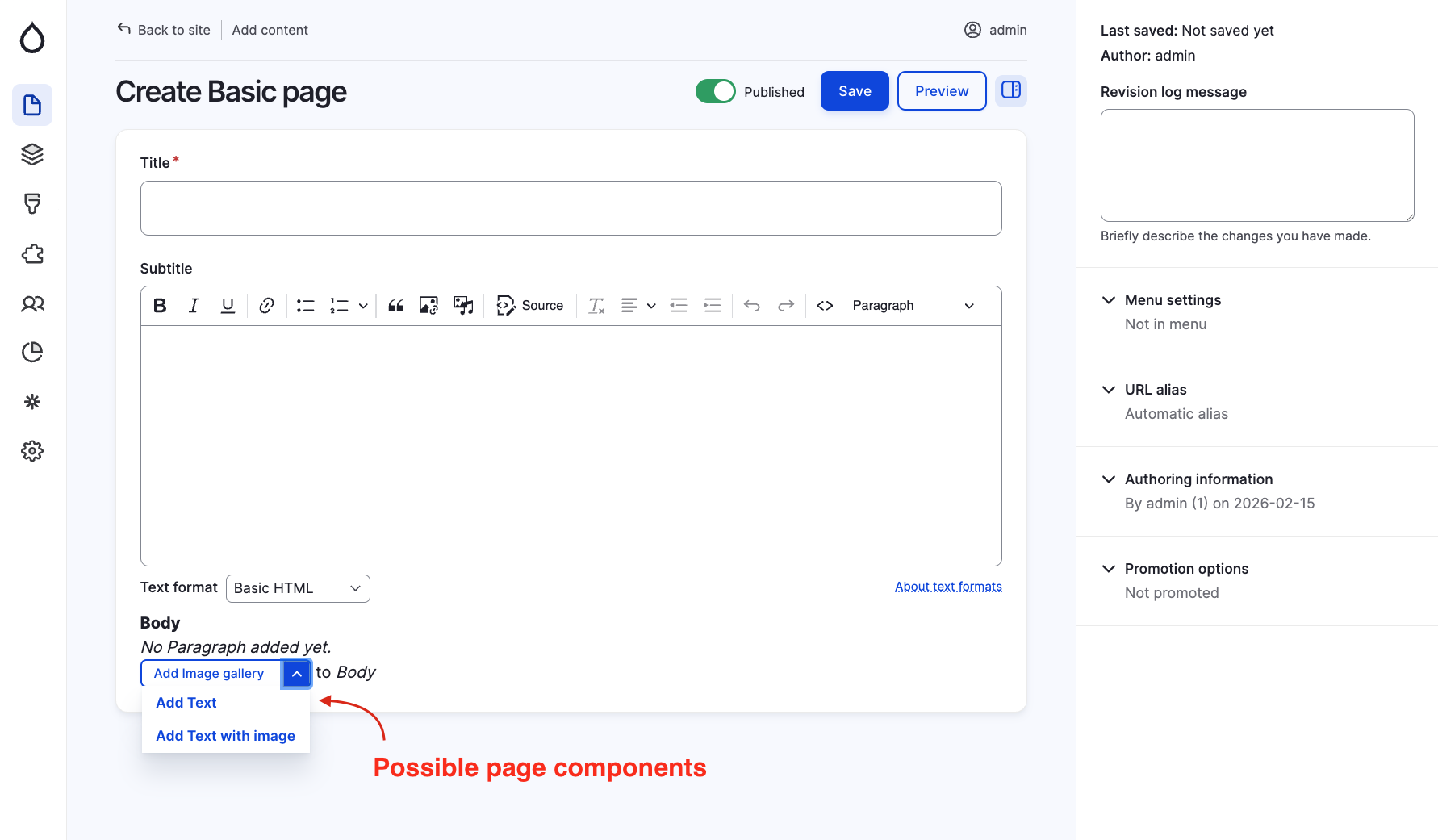
After creating or editing page content, you can add more content by choosing which components are supposed to be shown on each page.
Currently, there are 3 components implemented into Satellite 5:
- Image gallery
- Adding multiple images to the page
- Text
- Formatted page text
- bold, italic, underscore
- links
- bullet points, ordered lists
- quotes
- images
- Switching the "Text format" option from "Basic HTML" to "Full HTML", it allows you to also create tables or insert code snippets inside the formatted text fields.
- Formatted page text
- Text with image
- Requires text and image input and distributes them on the selected "Image position"
- Options: Top, Right, Bottom, Left
Title
Setup Homepage / Custom URL
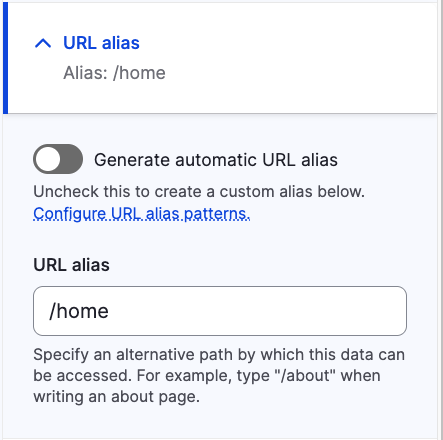
To set the page as the main page (homepage) it is possible to turn off the button "Provide a menu link" in "URL alias".
By setting the "URL alias" values to /home you can set up that page to show the main content to users when they arrive on the website.
You can also provide a custom text under which all the users can find the page. For example, if the generated URL is too long for sharing with users, it can be edited.
Example:/this-is-my-tutorial-page-created-for-satelite-5 is a very long URL alias
Result: https://demo.esn-cz.org/this-is-my-tutorial-page-created-for-satelite-5
By editing this value to /tutorial-page
Result: https://demo.esn-cz.org/tutorial-page
The URL for that page will be created automatically based on the page title, if the button remains turned on.